Change a Windows user password
Prerequisites
- A VPS from the SSD NVMe or Game range installed with Windows
- An active HostMyServers client account
- Administrator rights on the server
Compatible offers
For more information on our compatible offers, see:
- Performance VPS - Ideal for game servers
- NVMe VPS - Optimal performance for your applications
Detailed procedure
1. Server connection
- Connect to your Windows server via RDP (Remote Desktop Protocol)
- Use the credentials provided when creating your VPS
2. Access to PowerShell/CMD
- Right-click on the Windows icon (bottom left)
- In the context menu, select:
- "Windows PowerShell (Admin)"
- or "Command Prompt (Admin)"
- Confirm privilege elevation if requested
3. Password modification
Execute the following command replacing the variables:
net user USERNAME NEW_PASSWORD
Usage example:
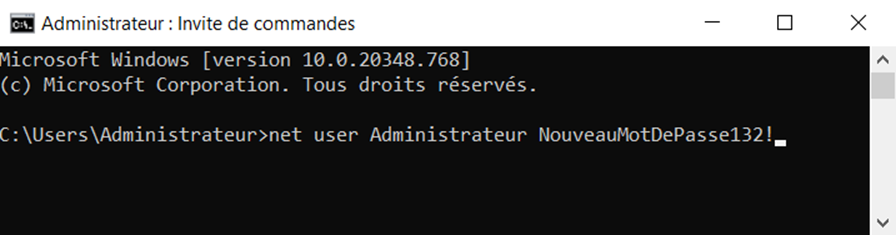
4. Finalization
- A confirmation message will appear if the modification is successful
- Restart your Windows server to fully apply the changes
Tip
Make sure to choose a strong password containing:
- At least 8 characters
- Uppercase and lowercase letters
- Numbers
- Special characters
Attention
Keep the new password securely stored.